 Cairn
Cairn
Dashboards
Live HTML dashboards that fetch real workspace data on every load. Ask the AI to generate one from a template, or write the HTML yourself — it renders instantly inside Cairn.
What dashboards are
A dashboard is a self-contained HTML document rendered in a sandboxed iframe inside your project. It has access to a window.cairn JavaScript API that lets it query your workspace data — notes, tasks, projects — at runtime.
Dashboards re-fetch data when you navigate to them, when you save edits to the HTML, or when you click the manual refresh button (↺) in the toolbar. There is no automatic periodic refresh.
Dashboards are stored like notes: as a record in your workspace database, editable at any time. No deploy step, no build process.
Creating a dashboard
From a template
- Select a project in the left sidebar
- Click the Dashboards tab
- Click New Dashboard → choose a template from the gallery
- The dashboard is created and opens immediately
Available templates:
- Project Health — task counts by column, overdue cards, priority breakdown
- Daily Standup — what moved yesterday, what's in progress today, blockers
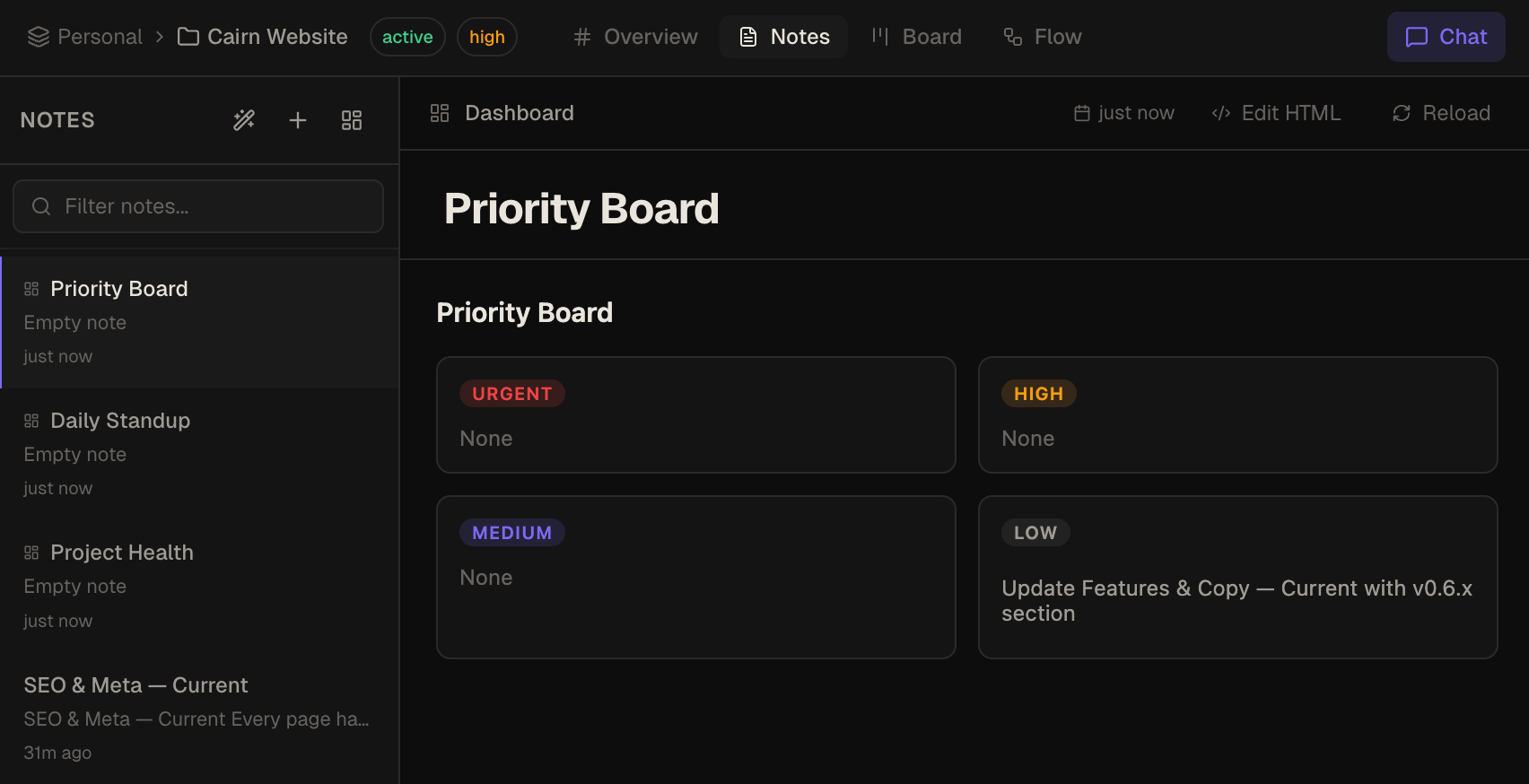
- Priority Board — all open tasks sorted by priority across columns
- Workspace Overview — all projects with card counts and recent activity
Ask the AI
Open the AI chat panel and describe what you want:
Create a dashboard showing all urgent and high priority tasks
grouped by project, with a count of how many are overdue.
The AI calls create_dashboard with a complete HTML document. The dashboard appears in your project immediately.
The window.cairn API
Cairn automatically injects window.cairn when rendering a dashboard. It includes the current project and workspace IDs, typed helper methods that default to the current project, and a raw query bridge for any read-only MCP tool.
// Injected context — no hardcoding needed
window.cairn.projectId    // current project ID
window.cairn.workspaceId  // current workspace ID

// Typed helpers — projectId defaults to current project
const tasks   = await window.cairn.listTasks();
const notes   = await window.cairn.listNotes();
const summary = await window.cairn.getProjectSummary();
const recent  = await window.cairn.listRecentActivity({ limit: 10 });
const found   = await window.cairn.searchTasks('urgent');
const results = await window.cairn.searchNotes('meeting');
const ctx     = await window.cairn.getContext();

// Raw bridge for any read-only MCP tool
const data = await window.cairn.query('get_task', { cardId: 'abc123' });
Available query tools
| Method / Tool | Description |
|---|---|
listTasks(projectId?) | All tasks grouped by column |
listNotes(projectId?) | All notes in a project |
getProjectSummary(projectId?) | Column breakdown, card counts, pinned notes, recent activity |
listRecentActivity({ projectId?, workspaceId?, limit? }) | Recently created or updated notes and tasks |
searchTasks(query, projectId?) | Full-text search across task cards |
searchNotes(query, projectId?) | Full-text search across notes |
getContext() | All workspaces and projects with column IDs |
query(tool, args) | Raw bridge for any read-only MCP tool |
Dashboards can only read data — write tools are not available via window.cairn. To modify workspace data from a dashboard, use the AI chat panel or MCP.
Editing dashboard HTML
Every dashboard has a built-in HTML editor. Click the Edit button (pencil icon) in the dashboard toolbar to open it. The editor has syntax highlighting and shows a live preview as you type.
Theme-aware rendering
Cairn supports Light, Dark, and System themes (Settings → General → Theme). Dashboards automatically inherit the active theme — the prefers-color-scheme media query inside your dashboard HTML will match the current app theme with no extra configuration. CSS variables from the app are not injected, so write your own styles using @media (prefers-color-scheme: dark).
Dashboards must be self-contained HTML documents:
- Inline CSS and JavaScript only — no external
<link>or<script src> - No external network requests — all data must come via
window.cairn.query - No
localStorage,indexedDB, ordocument.cookie
Fix with AI
If a dashboard throws a JavaScript runtime error, an error overlay appears over the dashboard with the error message and stack trace. A Fix with AI button sends the error and the current HTML to the AI chat, which rewrites the relevant code and updates the dashboard automatically.
Creating via MCP or AI Chat
Both create_dashboard and update_dashboard are available in AI Chat and via MCP.
Via AI Chat — the AI generates the full HTML and calls the tool directly. Via MCP:
// create_dashboard
{
  "projectId": "your-project-id",
  "title": "Sprint Overview",
  "html": "..."
}

// update_dashboard
{
  "noteId": "dashboard-note-id",
  "title": "Sprint Overview",   // optional
  "html": "..."  // optional
}
See the MCP Server docs for the full tool reference.
Limitations
- No outbound network requests — dashboards are fully sandboxed
- No external CSS frameworks or JavaScript libraries via CDN
- No persistent client-side storage (
localStorageetc.) - Iframes are sandboxed — no access to the parent Cairn window
- HTML must be a complete document (including
<!DOCTYPE html>and<html>tags)