 Cairn
Cairn
PRD Generator
Describe a feature in plain language. Cairn generates a structured Product Requirements Document, saves it as a note, and can spawn the implementation tasks directly onto your board.
What it generates
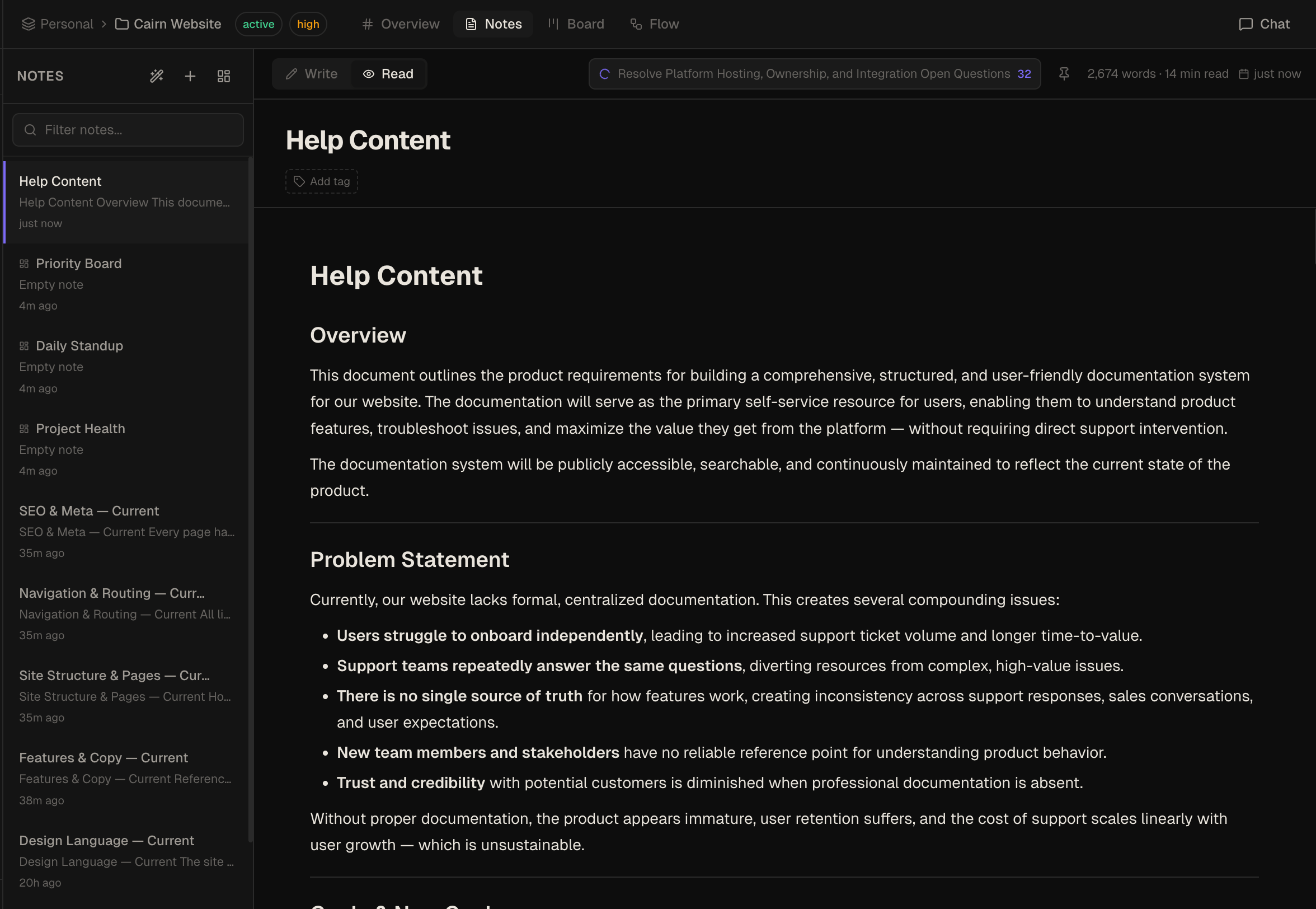
Each generated PRD is a markdown note with the following sections:
- Overview — one-paragraph summary of the feature
- Problem Statement — what problem this solves and for whom
- Goals & Non-Goals — what's in scope and explicitly out of scope
- User Stories — structured "As a… I want… So that…" entries
- Functional Requirements — numbered list of required behaviours
- Non-Functional Requirements — performance, security, compatibility
- Acceptance Criteria — testable conditions for "done"
- Open Questions — unresolved decisions to surface to stakeholders
How to open it
- Select a project in the left sidebar
- Click Notes in the top nav
- Click the Wand icon in the notes panel toolbar
- The PRD Generator panel opens on the right
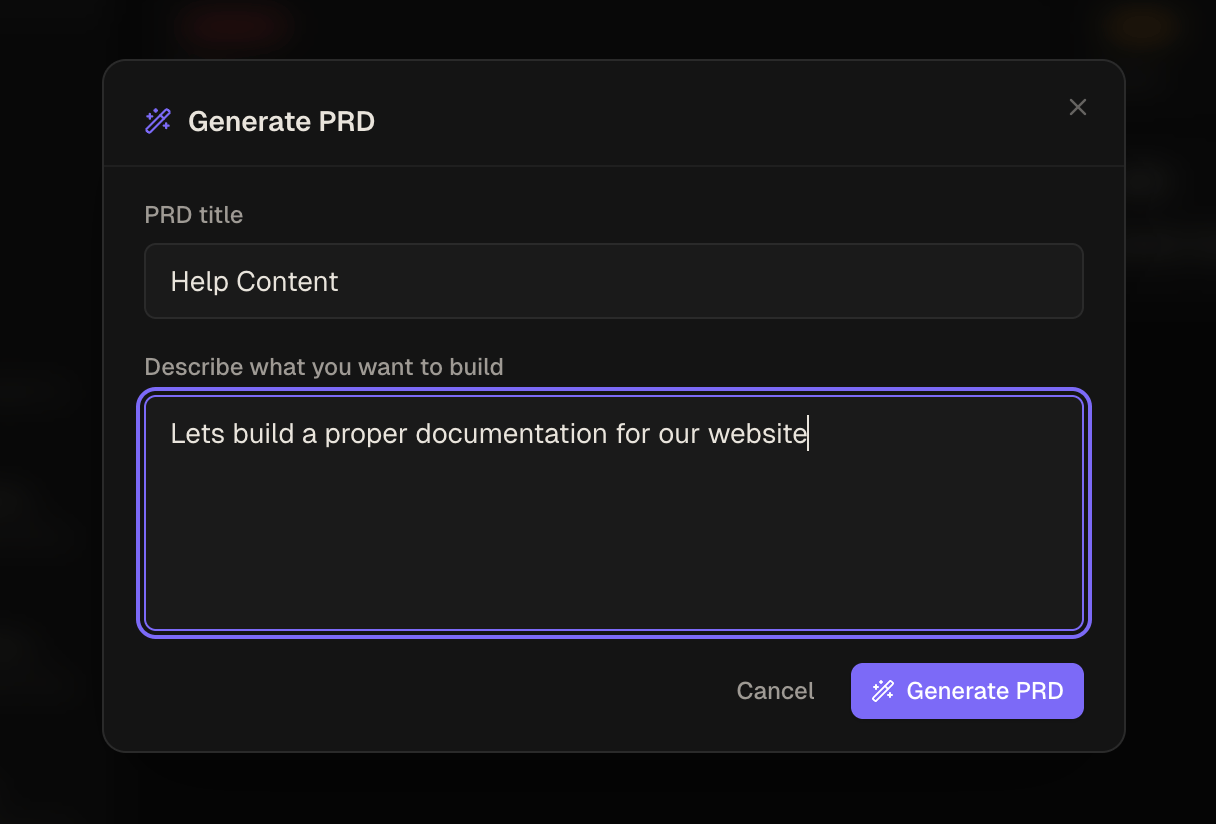
Filling in the form
Title
A short, clear feature name. This becomes the note title. Example: "User notification preferences".
Requirements
Describe what the feature should do in plain language. Be as specific as useful — the more context you give, the more accurate the generated requirements will be. A few bullet points or a short paragraph is sufficient.
Include: who uses the feature, the core behaviour, any constraints or edge cases you already know, and what "done" looks like. You don't need to write in PRD format — Cairn handles the structure.
Example requirements input:
Users should be able to control which email notifications they receive.
Options: task assigned, task due soon (24h), weekly digest, none.
They should be able to set preferences per-project or globally.
Changes should take effect immediately without re-logging in.
Reviewing and editing the PRD
Click Generate. The PRD streams into a preview pane as it's written. When generation finishes, click Save as Note to commit it to your notes list.
The saved note is a normal markdown note — open it in the editor to revise any section, add stakeholder comments, or restructure requirements before spawning tasks.
Spawning tasks
Once the PRD is saved as a note, open it in the editor. A Spawn tasks button appears in the toolbar.
- Click Spawn tasks
- A live progress feed shows each task being created
- The AI reads the PRD and creates structured task cards in the Backlog column
- Each card includes a title, description derived from the requirements, and a link back to the PRD note
You can spawn tasks multiple times from the same PRD as requirements evolve — duplicate tasks are not automatically detected, so review existing board state first.
Bidirectional links
Every task spawned from a PRD is linked to the source note:
- Opening the task card shows a Linked note indicator — click it to jump to the PRD
- Opening the PRD note shows all linked task cards with their current column status
This makes it easy to trace any task back to its requirements, and to see PRD progress at a glance by checking how many linked tasks have moved to Done.
Using the PRD Generator via AI Chat or MCP
The same capability is available programmatically:
- In AI Chat: ask "Generate a PRD for [feature description]" — the AI calls the
generate_prdtool - Via MCP: call
generate_prdwith atitleandrequirementsstring from any MCP client - To spawn tasks programmatically: call
spawn_tasks_from_notewith the note ID — this tool is available in AI Chat only, not via MCP