 Cairn
Cairn
AI Chat
A persistent side panel that gives your AI model direct access to your workspace. Read notes, create tasks, move cards, generate PRDs — all through natural conversation.
Opening the chat panel
Press ⌘/ on macOS or Ctrl+/ on Windows and Linux. The chat panel slides open on the right side of the window. It stays open across navigation — switching between Notes and Board views doesn't close it.
How the agentic loop works
When you send a message, Cairn sends your message and the conversation history to your configured AI endpoint. The model may respond with plain text, or it may issue tool calls — requests to perform actions inside your workspace.
Cairn executes each tool call, feeds the result back to the model, and repeats until the model produces a final text response with no pending tool calls. This is the agentic loop: the model can chain multiple actions to complete complex requests without needing you to prompt it at each step.
Example: "Move all urgent tasks to In Progress" — the model calls search_tasks to find urgent cards, then calls update_task for each one, then responds with a summary.
Live tool call activity feed
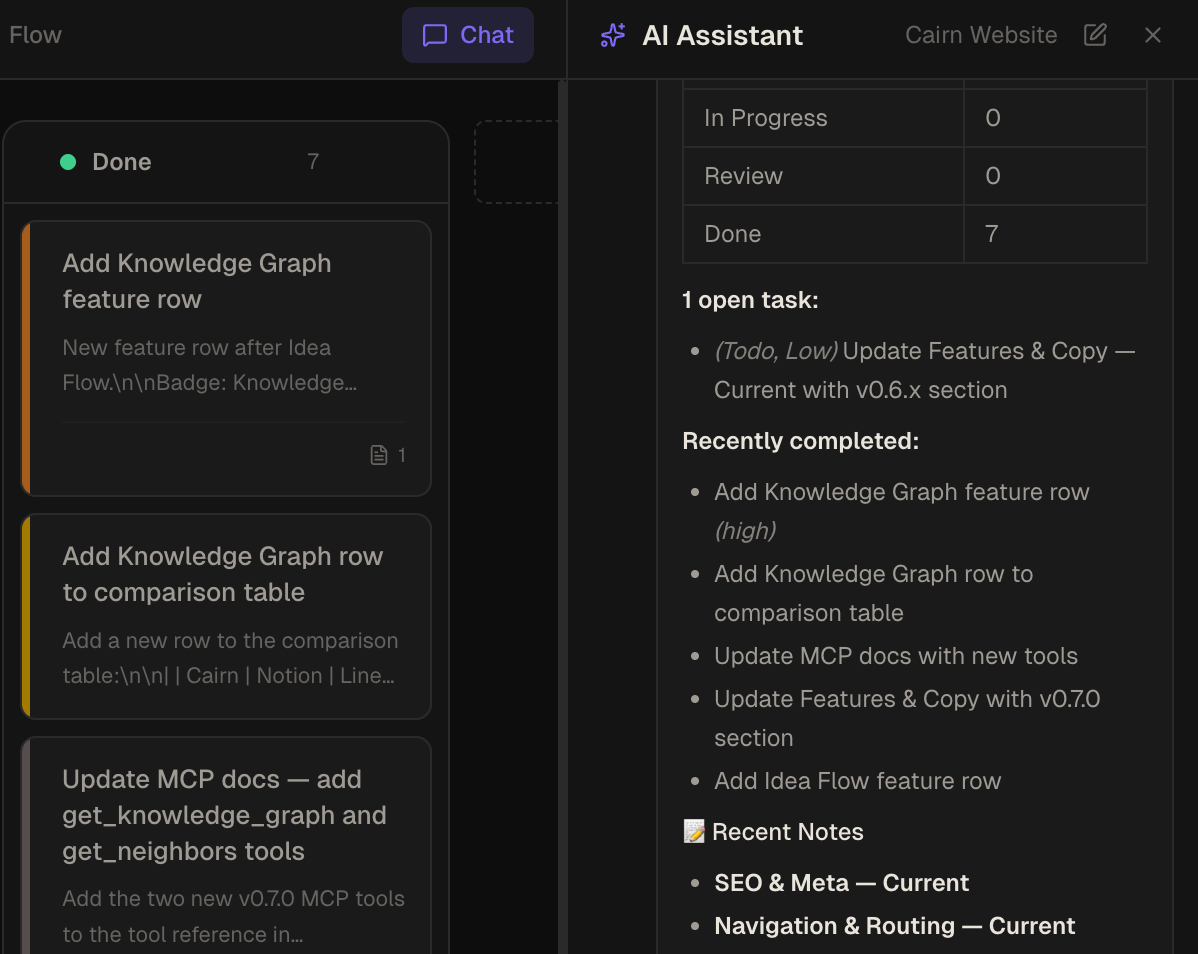
Every tool call is shown in real time in the chat panel as it executes. You see:
- The tool name and parameters being passed
- A live spinner while the call is running
- A success or error indicator when it completes
This makes the AI's behaviour transparent — you always know what it did and why.
Streaming responses
The AI streams its reply word-by-word as it's generated — you see the response building in real time rather than waiting for the full reply. A live cursor shows while tokens arrive. Tool calls still run before streaming begins.
Attachments: images & PDFs
The chat composer accepts image and PDF attachments alongside text. The attach button adapts to the selected model: models known (via models.dev) to accept images keep the image option, models that accept PDFs receive the raw bytes losslessly, and models that only take images get a PDF rasterized (up to 8 pages) into image parts so the file still arrives. The attach button is hidden for models known not to accept any attachments, and everything falls back gracefully offline. The coding agent's input accepts the same attachments — images and PDFs are staged, serialized, and sent with the prompt through the agent loop.
Thread history
A History button in the chat header lists up to 15 recent threads per project, each titled from its first message. Select any thread to resume it. Threads can be renamed, deleted individually, or cleared in bulk. Deleting the active thread starts a fresh one automatically.
Reasoning & thinking streams
Models that emit reasoning show their thought process in a collapsible thinking block that streams live and auto-collapses once the answer starts. A context-usage ring in the chat header breaks down your token budget — including answer tokens vs. reasoning tokens — so you always know where you stand.
Subagents
Turn on Subagents (Settings → AI & Chat, or the in-chat gear popover) to route a conversation through a dispatch → research/write architecture: a thin dispatcher delegates read-only research and write work to focused child agents, each with a smaller tool set. On capable models this cut prompt tokens by roughly 43% on research-heavy tasks at equal output quality. Each running sub-agent appears as an inline block you can expand to "step into" — its instruction, streamed findings, and tool calls — and the trace persists in thread history.
Side-by-side previews
The chat can morph between a right-docked sidebar and a full-workspace layout. Click a note, task, or reference in an assistant response and it opens in a preview pane next to the chat, with a header link to jump straight to the Board or Notes view. When the assistant calls an external tool, the result shows as a clickable chip that opens the underlying page (a Confluence doc, a pull request, a search hit) in your browser.
Saved AI providers
Save several named, OpenAI-compatible connections — each with its own name, base URL, API key, and default model — and switch the active one from a dropdown instead of retyping your endpoint every time. Add one for OpenAI, another for OpenRouter or Together, one for a local Ollama / LM Studio server, and flip between them in a click. You can switch the active provider right from the chat quick-settings popover while you're chatting.
- Shared with the coding agent — chat and the coding agent draw from the same provider list but keep independent active selections, so the agent can run a bigger model while chat stays on a cheaper one.
- Search & favourite models — every model dropdown has a search box at the top to filter long lists as you type, plus a star on each row. Favourites pin to the top of the list under a "Favourites" heading in every picker, are global (shared across all providers and both chat and the agent), and persist across restarts.
- Cost & logos in the picker — model rows pull live data from the models.dev catalog: the provider's logo sits next to the model name, a compact
$in/$outcost label shows the per-1M-token price (or "free"), and a warning triangle marks models known not to support tool calls. - Auto context window — model context size is detected from the models.dev catalog and applied automatically when you change models (cached for offline use).
- Credit balance — providers that expose a balance API (OpenRouter, DeepSeek, OpenAI, NeuralWatt, and any community provider that advertises a credits descriptor) show a small "credits left" badge under the model picker, refreshed at most once a minute.
- Max output tokens — a control in Settings → AI lets you cap each reply (handy to bound cost). Leave it on Auto (the default) and Cairn sends the model's own declared output limit so it finishes naturally.
Community AI providers
A Browse Community button in Settings → AI & Chat (and Settings → Coding Agent) installs ready-made provider presets from the cairn-community catalog with one click — you just enter your API key, which is stored in your OS keychain. Each preset ships an endpoint base URL and a default model, so there's no more copy-pasting gateway URLs. Installed providers join your shared provider list and show their brand logo in the switcher.
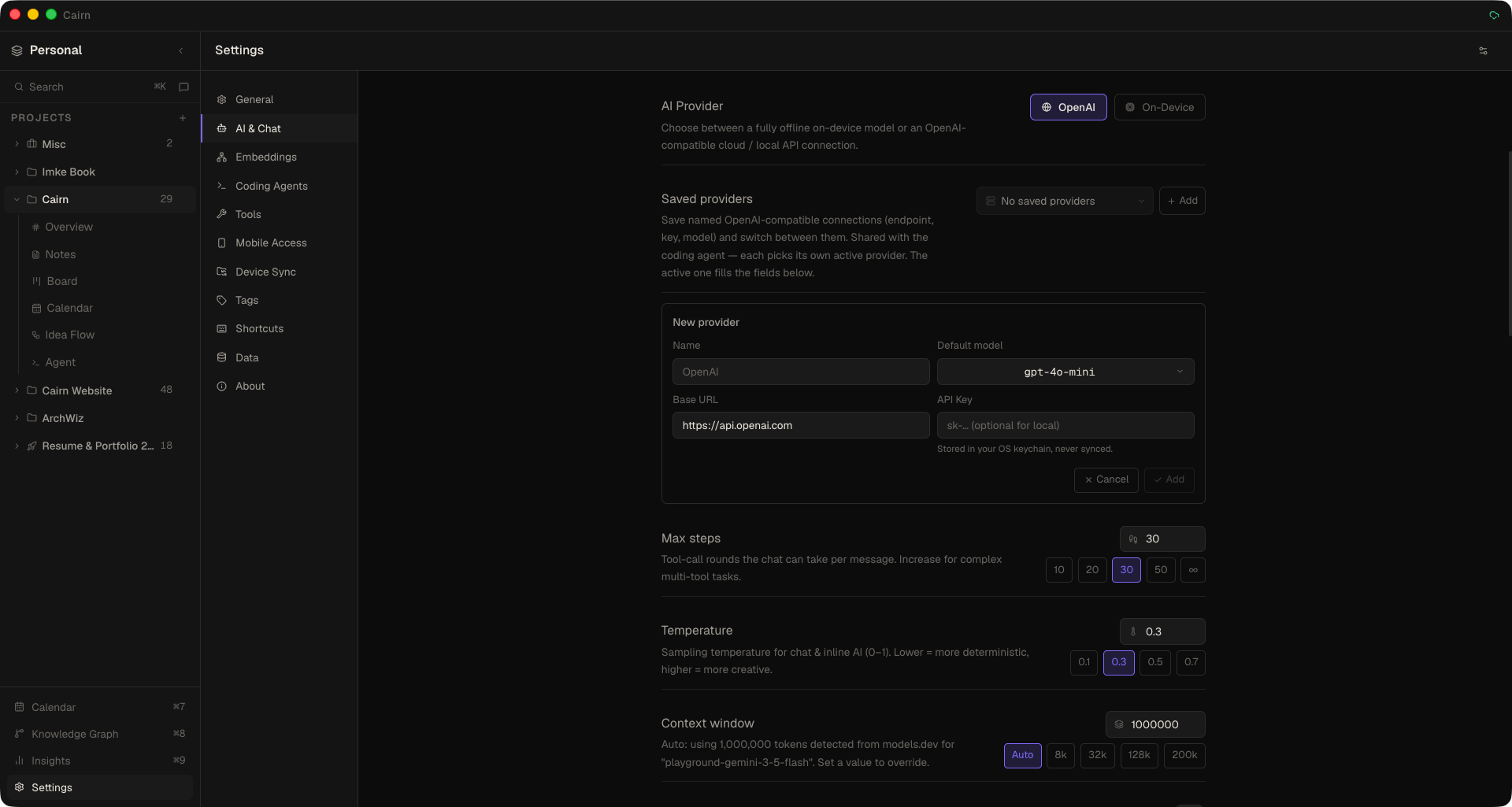
Provider API keys are stored encrypted in your operating system's keychain (macOS Keychain, Windows DPAPI, Linux libsecret) — never in plain text. The app only holds an opaque reference; the real key is decrypted in the background process at request time and never exposed to the window. The key field shows only "•••• stored — type to replace".
External tools in chat
Beyond the built-in workspace tools, chat can call external tools you connect — remote MCP servers and any HTTP API, including OAuth-protected services. Configure them in Settings → Tools and attach them per-project. See External Tools for the full guide.
In-chat settings
A gear icon in the chat toolbar opens a compact popover to change the model, max tool-call steps, temperature, and subagents on the spot — no round-trip to Settings. A "More settings…" link jumps to the full AI & Chat settings when you need endpoints, keys, or tools.
Supported endpoints
Any OpenAI-compatible API endpoint works. Configure your endpoint in Settings → AI & Chat.
| Provider | Endpoint URL | API key required |
|---|---|---|
| On-Device Llama | Built-in llama-server via llama.cpp | No (Local, private, offline) |
| OpenAI | https://api.openai.com |
Yes |
| Groq | https://api.groq.com/openai |
Yes |
| Together AI | https://api.together.xyz |
Yes |
| Ollama (local) | http://localhost:11434 |
No |
| LM Studio (local) | http://localhost:1234 |
No |
| Any compatible proxy | Your proxy URL | Depends on proxy |
Runs offline privately using an integrated llama.cpp server. Download and manage highly optimized quantized GGUF models (such as Gemma 4) directly inside the AI Settings console. The engine operates entirely locally on your CPU/GPU hardware, requiring zero API keys, network calls, or remote servers.
Anthropic's API is not natively OpenAI-compatible. Use a compatible proxy (e.g. LiteLLM) to connect Claude models to Cairn.
For best tool-calling performance, use a model with strong function-calling support. Frontier models from OpenAI or Anthropic (via proxy) work well, as do locally fine-tuned coding models via Ollama.
What the AI can do
The AI has access to the full set of workspace tools inside the chat panel — notes, tasks, projects, tags, dashboards, Idea Flow, the knowledge graph, and semantic search — plus any external tools you've attached. Tools marked * are chat-only and not available via MCP. A representative selection:
| Tool | Description |
|---|---|
get_active_context * | Returns the active workspace and currently open project with column IDs |
get_cairn_context | Full orientation: all workspaces, projects, column IDs, tool list, conventions |
get_project_context_pack | Single-call bundle: project metadata + pinned notes + open tasks + recent activity |
search_notes | Full-text search across notes. Empty query returns all notes. |
get_note | Full markdown content, linked IDs, and metadata of a note by ID |
ensure_note | Idempotent create-or-update by title — prevents duplicate notes |
append_to_note | Append content to a note without re-sending the full body |
patch_note | Surgically replace a string inside a note |
delete_note | Permanently delete a note |
search_tasks | Full-text search across task cards. Empty query returns all tasks. |
get_task | Full detail of a task card including linked notes and blockedByIds |
list_ready_tasks | Only unblocked, active tasks — use this to find work that can start now |
create_task | Create a task card in a column |
update_task | Update a task's fields. Pass archived: true/false to archive or restore. Pass blockedBy to add a blocker, unblockFrom to remove one. |
bulk_update_task_status | Move multiple tasks to the same column in one call |
delete_task | Permanently delete a task card |
link_note_to_task | Bidirectionally link a note and a task card |
upsert_project | Create or update a project. Omit projectId to create (auto-creates 5 default columns); provide projectId to update. |
delete_project | Permanently delete a project and all its contents |
create_tag | Create a workspace tag with a name and hex colour |
create_dashboard | Create a live HTML dashboard in a project |
update_dashboard | Update an existing dashboard's title or HTML |
get_dashboard_constants | Returns the window.cairn API reference for building dashboards |
get_idea_flow | Full canvas graph — all nodes and edges — with note and task content resolved inline |
create_idea_flow_node | Add a node to the Idea Flow canvas |
update_idea_flow_node | Update a node's data or position |
delete_idea_flow_node | Remove a node and all its connected edges |
create_idea_flow_edge | Connect two nodes with an optional label |
delete_idea_flow_edge | Remove a connection between two nodes |
layout_idea_flow | Auto-arrange all nodes in the canvas |
get_idea_flow_rules | Returns node type conventions, group rules, and positioning guidelines for Idea Flow |
get_knowledge_graph | Full workspace relationship graph; scope by project, node type, or edge type |
get_neighbors | N-hop BFS traversal from any node (depth 1–3) |
generate_prd * | Generate a structured PRD note from a plain-language description |
spawn_tasks_from_note * | Read a PRD note and create structured task cards on the board |
ask_questions * | Present structured clarifying questions as an inline form the user can fill in before the AI continues |
suggest_connections * | Emit suggested Knowledge Graph connections the user can accept or dismiss with one click |
Message controls
- Stop generation — a Stop button appears while the AI is responding. The abort is checked between tool-call rounds, not mid-execution. Any tool calls already completed remain in effect — Cairn does not roll back actions taken before you stopped.
- Copy — hover any message to reveal a Copy button. Copies the raw markdown content.
- Retry — hover any of your own messages to reveal a Retry button. Re-sends that message, discarding everything that followed it in the thread.
Slash commands
Type / in the input to open the command palette. Built-ins include /compact (summarise the conversation to save context) and /archive-chat, plus commands that insert text — and the Commands settings page documents every one in one place.
- Custom commands — create your own from Settings → Commands: a
/name, a description, the text it inserts, and a scope (AI chat, coding agent, or both). Custom commands are workspace-global and persist in the local database; one with the same name as a built-in overrides it. - Browse community commands — Settings → Commands → Browse Community installs ready-made slash commands from the cairn-community registry with one click, searchable and filterable by category. Installed commands show an Update action when they change upstream (with a confirmation before it overwrites a command you've edited locally).
The reserved executable built-ins /compact and /archive-chat can't be overridden. When you tab-complete a slash command, the input sends on the next Enter.
Context & conversation history
The chat panel maintains the full conversation history for the current thread. Threads are written to SQLite and re-hydrated on launch, so they persist across app restarts and updates — you can close and reopen Cairn and resume any thread from the history list, even if local browser storage is wiped. The last-active thread is remembered and re-selected on restart. If you want the AI to have specific context beyond the current thread, paste it into the chat or ask it to read a note.
Keyboard shortcuts
- ⌘/ / Ctrl+/ — toggle chat panel
- Enter — send message
- Shift+Enter — insert newline in message
- Esc — stop generation or close chat panel